·
8 min read
The dead-man's switch — Fresh Jots watches for the silence so you don't have to
The dead-man's switch — Fresh Jots watches for the silence so you don't have to
Most alerts tell you when something *happened*: a job failed, a server threw an error, a payment bounced. The hardest thing to catch is the opposite — when something that's supposed to keep happening quietly *stops*. A backup cron that never ran last night. A scraper that died on Tuesday and nobody noticed until Friday. A side project whose heartbeat just… ended.
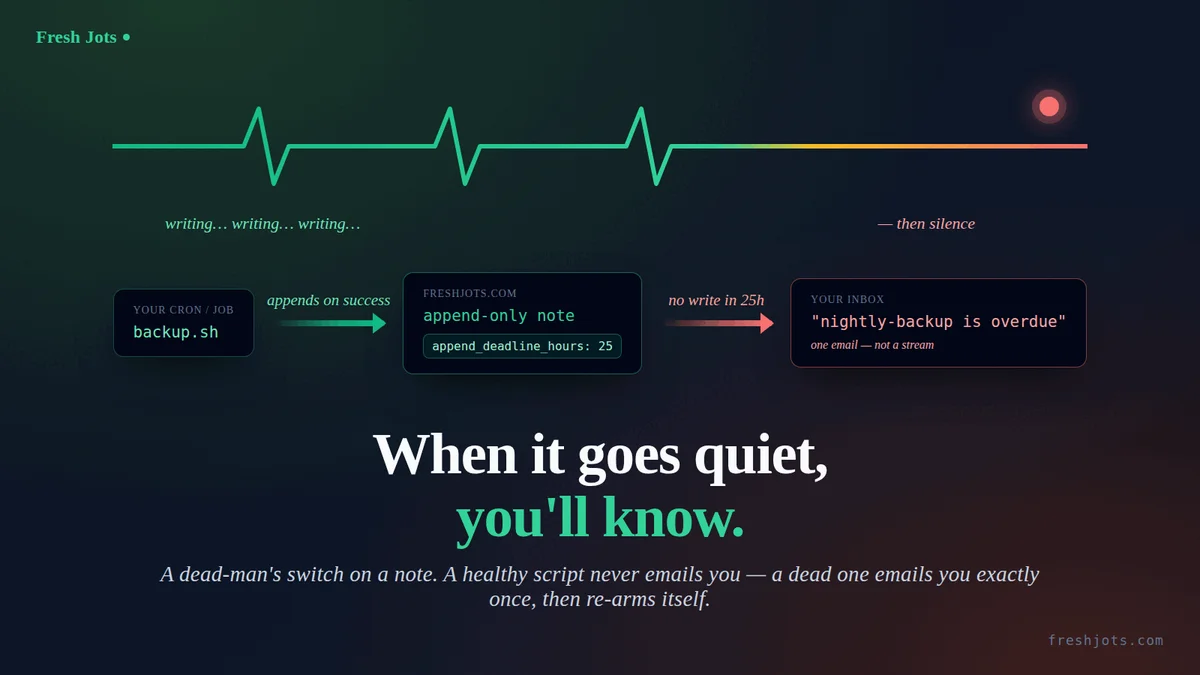
The dead-man's switch is Fresh Jots watching for that silence. You tell a note "something should be writing to me at least this often." If the writing stops, Fresh Jots emails you. If it never stops, you never hear from it. That's the whole promise: you only look when something needs attention. Everything else stays quiet.
This post walks through everything it does, in plain terms — no setup jargon, no internals. Just what it watches, what you'll get, and how it behaves.
For a detailed explanation of the set up, and work, see Setting up a dead-man's switch — by hand, or by API.
For a detailed explanation of the set up, and work, see Setting up a dead-man's switch — by hand, or by API.
1. The idea in one sentence
1. The idea in one sentence
Pick a note that something writes to on a schedule. Tell it the longest gap you'd ever expect between writes. If a real gap ever exceeds that, you get an email. The next write silently resets everything.
That's it. No agent to install, no second service, no dashboard to babysit.
2. What you can put a switch on
2. What you can put a switch on
A dead-man's switch lives on a single note, and there are two things that note needs:
- It has to be an append-only note. The switch is for "this thing should *keep adding to* the log" — a cron, a deploy bot, a watchdog. Locking the note to append-only is what makes that promise meaningful, so the option only appears there.
- You need a Dev or Team plan. It's part of the same toolset as the API and webhooks. On a Team plan it applies to the team's notes even if the individual member who set it up isn't personally on Dev — the team's plan covers it. An active 14-day trial counts too — it behaves exactly like Dev here.
To switch it on, open the note's Settings and fill in "Hours without an append." Optionally, set a different address to be alerted; leave it blank and alerts go to your account email. Save, and the note is now being watched.
You can choose any deadline from 1 hour up to 30 days. Short for a job that should run every few minutes; long for something that only checks in once a week.
3. What "overdue" actually means
3. What "overdue" actually means
The clock measures from the last time the note received an append. Every successful write pushes the deadline forward.
There's one important subtlety, and it works in your favour: if the note has *never* been appended to at all, the clock runs from when you set the deadline (or when the note was created, whichever is later). So a script that breaks on its very first run — the worst case, the one that's easiest to never notice — still trips the alarm. You don't have to have a "known good" write first.
4. When you'll hear about it
4. When you'll hear about it
Fresh Jots checks the watched notes about every ten minutes. So if your deadline is one hour, you'll hear roughly an hour to an hour-and-ten-minutes after the last write — not to the second.
That's deliberate. This is a *"this has been quiet too long"* alarm, not a stopwatch. It's tuned to catch a job that genuinely died, not to page you the instant a run is thirty seconds late.
5. You get one email — not a nagging stream
5. You get one email — not a nagging stream
This is the part people worry about, so it's worth being explicit: a stuck note emails you once. Not every ten minutes. Not again tomorrow. Once.
After that first alert, the note goes quiet again on its own. It will only ever email you again about a *fresh* failure — meaning the script recovered, then failed again later. A note that's simply still broken does not keep mailing you about it.
And if something goes wrong on our side delivering that email, you won't get a delayed flood of duplicates when things recover. The alert is sent once, on a best effort; we don't pile up retries that land on you all at once.
6. It re-arms itself — you never touch the switch
6. It re-arms itself — you never touch the switch
Here's the part that makes it feel automatic. The next successful append silently clears the alert and resets the clock. There is no "acknowledge to re-enable," no button to press, no switch to flip back.
Your script recovering *is* the reset. If it dies again a week later, you get a fresh alert then — because the recovery write already re-armed the watch in the background. You set it once and effectively forget it exists until it has something to tell you.
If you ever want to stop watching a note — you retired the job, renamed the script — just open the note's Settings and clear the "Hours without an append" field. (If you automate your setup, the same thing can be done through the API.) That's the only maintenance there ever is.
7. When a lot breaks at once, you get one digest — not an inbox full
7. When a lot breaks at once, you get one digest — not an inbox full
Sometimes it isn't one script. A whole machine goes down, a shared credential expires, a network blips — and suddenly *many* of your watched notes are overdue in the same breath.
When that happens, Fresh Jots doesn't fire off a dozen near-identical emails. If **three or more** of your overdue notes would land at the same alert address in the same check, that address gets a **single combined email** instead — it lists every overdue note, each with its name, when it was last seen, its deadline, and a link to open it. One glance tells you "these eight things all stopped," instead of you sorting eight separate alerts to figure out it was one outage.
Fewer than three at one address still arrive as individual emails — at that volume, separate messages are easier to act on than a list. This digest is for your personal notes; team alerts always arrive one per note, so each keeps its own "I'm on it" acknowledge link.
8. What the alert actually tells you
8. What the alert actually tells you
Whether it's a single alert or the combined digest, every message is built to be understood in a few seconds on a phone:
- Which note / script is overdue.
- When it was last seen writing.
- What deadline it missed.
- A link to open the note and see what it last managed to log.
- How to stop watching it, if the job is gone for good.
No styling to wade through, no digging — the subject line alone usually tells you which script and how long it's been silent.
9. On a Team plan
9. On a Team plan
Team notes work the same way, with a few additions built for "who's on this?"
- Who gets the alert. By default it goes to everyone on the team. You can instead point it at a specific list of addresses (an on-call inbox, two named people), or send it to another tool entirely — a webhook into Slack, your paging system, or a ticket queue — instead of email.
- "I'm on it." A team alert includes a one-click acknowledge link. The first person to click it (or to acknowledge from the team alerts page) quiets repeat alerts for that note for the whole team for a few hours — so the rest of the team isn't pinged again while someone's already handling it. They don't have to log in to do it; the link is personal to them.
- A record of what happened. The team alerts page shows what fired and who acknowledged it — a small "who silenced this, and when" trail, not just a vanished notification.
10. When watching pauses
10. When watching pauses
If your subscription lapses and your account goes read-only, the watching pauses — there's no point emailing you about a script you can't fix through the API until you're active again. The same is true for a team whose plan is no longer active. Nothing is lost while it's paused: come back to an active plan and, on the very next check, anything that's still genuinely overdue alerts you right then — and from there the next successful append clears it and resets the clock, exactly as normal.
11. The shape of it, in one breath
11. The shape of it, in one breath
Lock a note to append-only. Tell it the longest silence you'd tolerate. Point your job at it. From then on: a healthy script never emails you, a dead one emails you exactly once, a recovered one quietly resets itself, and a bad day that takes out everything at once arrives as a single digest instead of a flood. Nothing to install, nothing to watch, nothing to reset.
That's what makes it trustworthy enough to forget about — which is the entire point of a switch you hope never trips.
12. Try it free for 14 days. No card.
12. Try it free for 14 days. No card.
Sign up at freshjots.com, pick Plain notes mode at onboarding, and a 14-day trial lands in your inbox — dead-man alerts included, same as paid Dev. Lock a note to append-only, set "Hours without an append" in its Settings, point a cron at it, and then forget about it. That's the whole idea.
After 14 days, Dev is $149/yr. The full reference lives at /docs under Watchdog & webhooks.