·
12 min read
The webhook inbox — a place for other apps to drop things you'll want to find later
The webhook inbox — a place for other apps to drop things you'll want to find later
A lot of the tools you already use can "send a notification somewhere" when something happens. A form gets a new submission. A price crosses a line you set. Almost all of them have a little box in their settings — sometimes labelled *Webhook*, sometimes *Notification URL* — and they'll fire off to a web address.
The catch: they need somewhere to send it. The box wants a URL. And unless you run a server, you don't have one. So the option sits there unused.
The webhook inbox is that missing URL. You turn it on for one note, copy the link, and paste it into that box in the other app. From then on, everything that app would have sent is saved into your note — each event stamped with the time it arrived, sitting there as plain text you can scroll, search, and read from your phone. If an app has a "send this to a web address" field, this gives you the address.
1. The idea in one sentence
1. The idea in one sentence
Pick an append-only note. Append-only gets "Locked", and means the existing content is frozen — new lines land at the bottom of the note; nothing already in it can be edited or overwritten, by you, by the API, or by anyone holding the inbox URL. That's the shape you want for a stream of incoming events: a log nothing can quietly rewrite, even if the URL ever ends up somewhere it shouldn't. So the note as an inbox option only appears once you've locked the note. Only data through API, or through the webhook inbox URL of this note can write to it.
Click the button to get its inbox URL. Paste that URL into any other service's "webhook" or "notification" box. Whatever that service sends now lands in your note, timestamped, searchable, forever.
Click the button to get its inbox URL. Paste that URL into any other service's "webhook" or "notification" box. Whatever that service sends now lands in your note, timestamped, searchable, forever.
No server. Nothing to install. Nothing to keep running on your side.
2. Why this is normally hard — and why it isn't hard here
2. Why this is normally hard — and why it isn't hard here
The standard way a note accepts API data asks the sending side for two things: a secret password attached to every request as a hidden header, and the data shaped a particular way. A script can do both. A tool with a "send a copy to this URL" box usually can't — that box is just a URL, with no field for a hidden header and no control over the shape of what it sends.
The webhook inbox closes that gap. The secret is *inside the URL itself* — the link is long and unguessable, and holding the link is the permission. And it accepts **anything**: whatever the other app sends, in whatever shape, gets written into the note as readable text. You never format anything, and the sending app never has to know it's talking to Fresh Jots.
That's the whole difference: same underlying idea as the developer API, delivered as a link you paste instead of a header and a payload format you'd have to know how to produce.
3. Setting one up — no code, nothing to install
3. Setting one up — no code, nothing to install
A webhook inbox lives on **one note**, and before it can collect anything, that note has to be **plain-text** *and* **append-only**.
"Plain-text" is the editor mode — the inbox writes raw lines, not formatted ones, so a rich-text note can't be a sink. If you signed up via the "Plain notes" onboarding option you're already there; otherwise switch your default mode in Settings before creating the note.
"Append-only" just means the note is locked so things can only ever be *added* to the bottom — never edited, never deleted, never overwritten. That's exactly what you want for a stream of incoming events: a log nothing can quietly rewrite. So the inbox option only appears once a note is locked.
You'll also need a **Pro or Team plan** — an active 14-day trial counts and behaves exactly like Pro here. The inbox is part of the same toolset as the API and the dead-man's switch.
1. **Create the note** in plain-text mode (or open one you already have). It can start empty — a title is enough; the other app will fill it in over time.
2. **Lock it to append-only** from the note view. Once it's locked, the inbox option becomes available on it.
3. **Open the note's Settings** and find **Webhook inbox**. Click **Enable**. A URL appears.
4. **Copy that URL.** Click the **Copy** button next to it.
5. **Go to the other app** — the form builder, the monitoring tool, the payment processor, whatever it is — find its *Webhook* / *Notification URL* / *Send events to* field, and paste the URL in. Save it there.
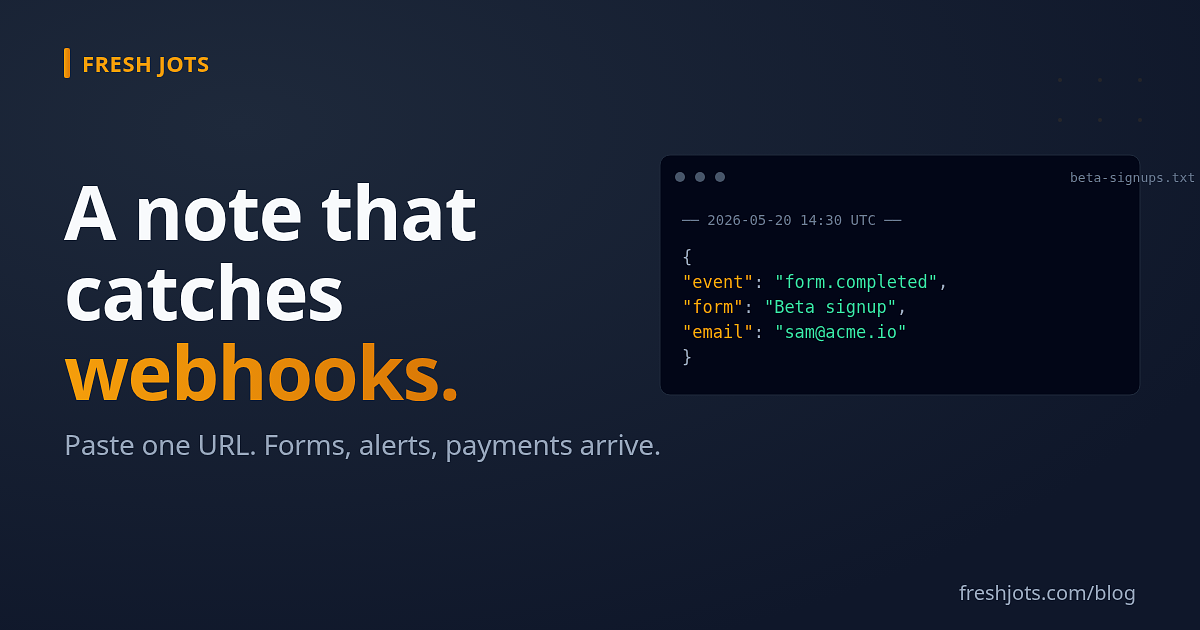
That's it. The next time anything happens in that app, it shows up in your note within seconds, under a line like:
```text
── 2026-05-20 14:30 UTC ──
{
"event": "form.completed",
"form": "Beta signup",
"email": "sam@acme.io",
"plan": "team"
}
```
You don't have to understand that block to use it. Search the note for `johg@acme.io` next month and it's right there, with the time it arrived.
4. What it accepts
4. What it accepts
Short answer: whatever the other app sends.
If it sends structured data, the inbox writes it out neatly, indented. If it sends a plain line of text, that's what you get. If it sends a form-style submission, that's written out readably too. You don't pick a format and the sending app doesn't have to match one — the inbox meets it wherever it is.
The one thing it isn't is a file store. If a service tries to push a binary blob — an image, a zip, a compressed body — the inbox writes a short `[non-text payload skipped]` line instead of garbling the note with raw bytes. It's a place for the *events* services emit, not their attachments.
Every event becomes its own timestamped block, added to the bottom of the note. Old entries are never touched. The note becomes a running, searchable record of everything that app has ever told you.
5. Who does what — three you can wire up in two minutes
5. Who does what — three you can wire up in two minutes
It's always the same three roles. **The service** sends. **You** paste one URL, once. **The note** collects. Here it is with tools people actually use — none of these needs a header, a secret, a script, or a server.
**A form — Tally, Typeform, Jotform, and most others**
- *The service:* every time someone submits the form, it sends the answers.
- *You:* in the form builder, open its **Integrations → Webhooks** section, paste your inbox URL, save.
- *The note:* one timestamped block per submission — name, email, and every field the person filled in — still searchable months later, long after the form tool's free plan would have hidden old responses.
**An uptime monitor — UptimeRobot, Better Stack, and similar**
- *The service:* fires the instant your site goes down, and again when it comes back.
- *You:* add a new alert contact, choose the **Webhook** type, paste the inbox URL.
- *The note:* a permanent down/up log you can scroll on your phone — no dashboard to log into, no "history older than 30 days is gone."
**Payments — Stripe**
- *The service:* emits an event on every successful charge, refund, failed payment, and new subscription.
- *You:* in Stripe, go to **Developers → Webhooks → Add endpoint**, paste the inbox URL, tick the events you care about.
- *The note:* a searchable record of each event — amount, customer email, what happened — readable without opening the Stripe dashboard at all.
In every case the work on your side is the same single act: copy the inbox URL, paste it into that one box, save. The service does the sending; the note does the keeping; you did nothing after the paste.
There is exactly one common tool where it isn't that simple — Slack — and it's worth seeing why, because the reason is the exception that proves how easy the rest are.
6. The one source that needs a little go-between — Slack
6. The one source that needs a little go-between — Slack
Almost everything with a "send events to this URL" box needs nothing extra: you paste the inbox URL and you're done. **If your sources have a URL box, skip this — you already have everything.**
Slack is the awkward exception. It has no plain "post every message to this URL" box. The closest thing — Slack's Events API — *can* send messages out, but only after a one-time handshake and only with cryptographically signed requests. A plain inbox URL can speak neither dialect; it saves what arrives and says "received," it doesn't hold a conversation. So Slack-into-a-note needs a small something in the middle.
Two clean ways to put that something there:
- **No-code: a Zapier zap (or Make scenario).** Trigger on **Slack — New Message Posted to Channel**, action **Webhooks by Zapier — POST**, destination = your Fresh Jots inbox URL. Two clicks, one paste, nothing of your own to run. Zapier and Make both have free tiers; a busy channel eventually pushes you onto a paid plan — that's the cost of not maintaining a process yourself.
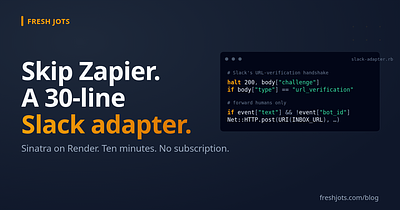
- **Self-hosted: about thirty lines of Ruby on Render or Fly.** A small Sinatra adapter does Slack's handshake itself, verifies signatures, filters out bots and edits, and forwards each remaining human message to your inbox URL. Render's free tier is plenty; the only ongoing work is occasional `bundle update` to keep gems current. Walked through end to end — Slack app, deploy, scopes, verification — in Forward Slack messages to a Fresh Jots note — without Zapier.
Either way, Slack only ever talks to the middleman; the inbox URL stays private; the messages land in the note as the same timestamped, searchable shape every other source produces.
7. It's built not to break on you
7. It's built not to break on you
A few things are handled quietly so a non-technical setup doesn't fall over:
- **Very large events are trimmed, not rejected.** If some app sends an enormous payload, the inbox keeps a generous, readable chunk of it, marks that it was trimmed, and still saves it. Your note doesn't choke on one chatty event.
- **Normal traffic is always told "received."** Many services will *disable their own webhook* if the address they're sending to keeps returning errors. So whether an event is saved whole, trimmed, or skipped as binary, the inbox still answers "received" — the other app stays happily connected and you never have to dig into its settings to re-enable anything. (The one thing that gets turned away is an abusive flood — next bullet.)
- **A flood can't drown everything else.** If one source suddenly goes hyperactive, its rate is capped — it starts getting "slow down" responses instead of "received" — so it can't crowd out your other notes or run up your storage. Normal, human-paced webhook traffic never comes close to the cap.
- **Notes themselves have a ceiling — 3 MB on Pro and Team.** It's a lot of events (a typical webhook payload is around a kilobyte), but on a busy source you'll get there eventually. Once a note nears the cap, lock it as an archive, open a fresh note in its place, and enable a new inbox URL on the new one — the old note keeps everything it collected, fully searchable.
The point of all of this: once you've pasted the URL in, you shouldn't have to think about it again for a long time.
8. If a link ever leaks
8. If a link ever leaks
The URL *is* the key, so treat it a little like a password — but you're never stuck with one.
- **Rotate URL** mints a fresh URL and instantly kills the old one. If a link ended up somewhere it shouldn't, click Rotate URL, then paste the new one back into the app. The old link stops working the moment you rotate.
- **Disable inbox** turns the inbox off entirely. The URL stops accepting anything; the note keeps everything it already collected.
Both live on the same Settings page, next to the URL itself. There's a *"last received"* line there too, so you can glance and see it's actually working without having to test it.
9. When collecting pauses
9. When collecting pauses
If your subscription lapses and your account goes read-only, the inbox stops accepting new events — there's no point piling data into a note you can't manage. Nothing already collected is lost. Come back to an active plan and the same URL starts accepting again; you don't have to re-paste anything anywhere.
10. The shape of it, in one breath
10. The shape of it, in one breath
Lock a note. Turn on its inbox. Copy the URL. Paste it into the "send notifications here" box of any app you already use. From then on, everything that app would have told you is saved into that note — timestamped, searchable, never overwritten — and you never have to run, install, or maintain anything to keep it flowing.
It turns "this tool can send webhooks" from a line you skip into a note you actually read.
11. Try it free for 14 days. No card.
11. Try it free for 14 days. No card.
Sign up, pick the **"Plain notes"** mode at onboarding, and a 14-day trial token lands in your email — the webhook inbox is included, same as paid Pro. Lock a note to append-only, enable its inbox in Settings, copy the URL, and paste it into one app you already use. Watch the first event land: two easy steps to set up everything, and get you going.
After 14 days, Pro is **$149/yr**.