·
7 min read
AI assistant over MCP to connect Fresh Jots to — just talk to your notes
AI assistant over MCP to connect Fresh Jots to — just talk to your notes
Every other guide here assumes someone writes the integration. The Write a note from any project, any language, any method assume *you* write the `curl`. The AI-agent post assumes your *agent* writes it for you from a pasted prompt. The Model Context Protocol removes even that step.
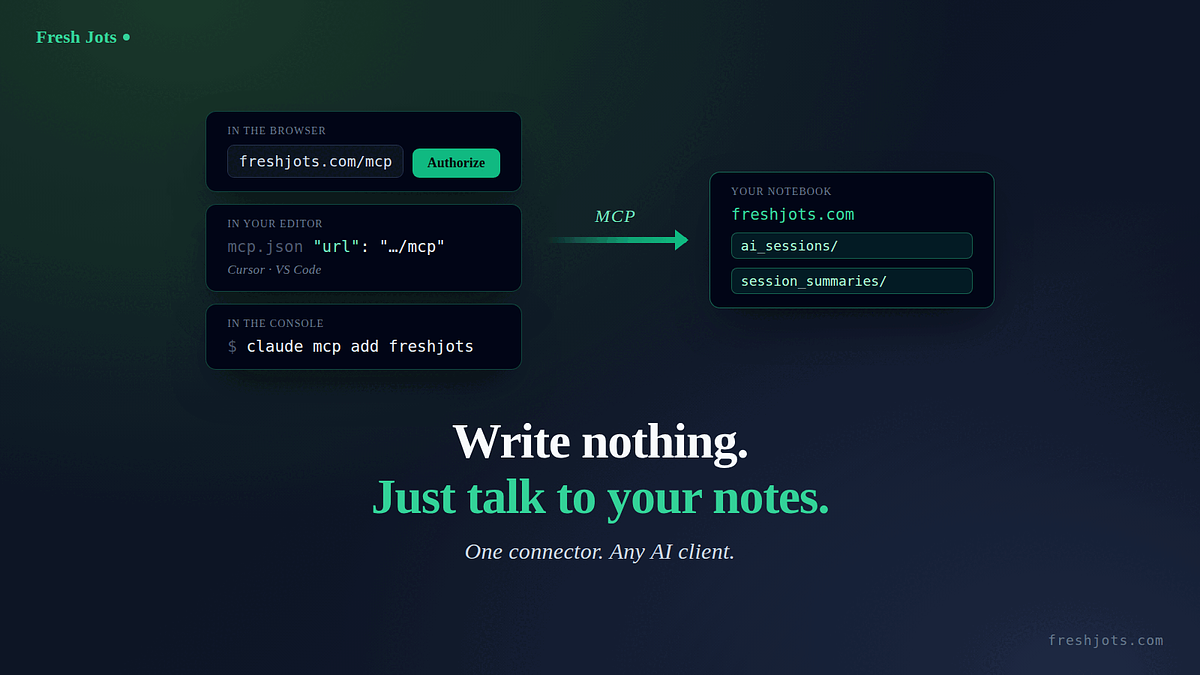
With MCP you connect Fresh Jots to your AI client once — a URL you paste in the browser, a line in your editor's config, or one command in the console — and from then on your assistant reads and writes your notes by just asking. No prompt to maintain, no token sitting in a script, no `POST` to compose. Your notebook becomes a set of tools your assistant picks up on its own. This is the Pro-tier connector, and here's how to turn it on in whatever you use — Claude, Cursor, VS Code, or any other MCP client.
1. What MCP actually is (thirty seconds)
1. What MCP actually is (thirty seconds)
The Model Context Protocol is an open standard for connecting AI assistants to tools and data — a universal adapter, so one integration works across every compatible client (Claude, Cursor, VS Code, and a growing list). Fresh Jots runs an MCP server, which means your assistant can call your notebook directly: eleven tools that list, read, create, append, update, delete, and move notes, plus manage folders. You never see the tools as code. You ask in plain language, and the assistant calls the right one.
The standout is **append-to-note**: it appends to a note addressed by an exact filename and creates it on first write. That's the same logging primitive as the by-filename API in Write a Note From Any Project — *"append today's session summary to `ai-sessions.txt`"* — except now your assistant does it without you wiring anything.
There are only ever two ways a client connects, and every tool below is one or the other:
- **Remote, with OAuth (recommended).** Point the client at the hosted server `https://freshjots.com/mcp`. The first time a tool fires, your browser opens the Fresh Jots authorize page; approve once and you're connected for good — no token in a file.
- **Local, with a token (zero-dependency).** Run the published `freshjots-mcp` stdio server with your API token. Nothing to host, nothing to authorize; it talks to the API directly.
2. In the browser — Claude (claude.ai or Claude Desktop), no install
2. In the browser — Claude (claude.ai or Claude Desktop), no install
This is the zero-terminal path, and the one most people on a chat client will use.
1. In **claude.ai** (or Claude Desktop), open **Settings → Connectors** and choose **Add custom connector**.
2. Paste the URL: `https://freshjots.com/mcp`
3. Click **Connect**. Your browser opens the **Fresh Jots authorize page** — sign in if you aren't already, and you'll see a consent screen: *"Authorize access — this app wants to connect to your Fresh Jots account. It will be able to: read and write your notes and folders."* Click **Authorize**.
4. That's it. Back in Claude, your notes are tools.
No token to copy, no config file, no install. The connection runs on OAuth: you authorize once in the browser, Claude holds a token, and it can reach your notebook until you revoke it. Then you just talk to it:
- *"List my Fresh Jots notes."*
- *"What did I write in my `deploys` note this week?"*
- *"Append this error to `incidents.txt` in Fresh Jots."*
- *"Save a summary of this conversation to my `ai_sessions` folder."*
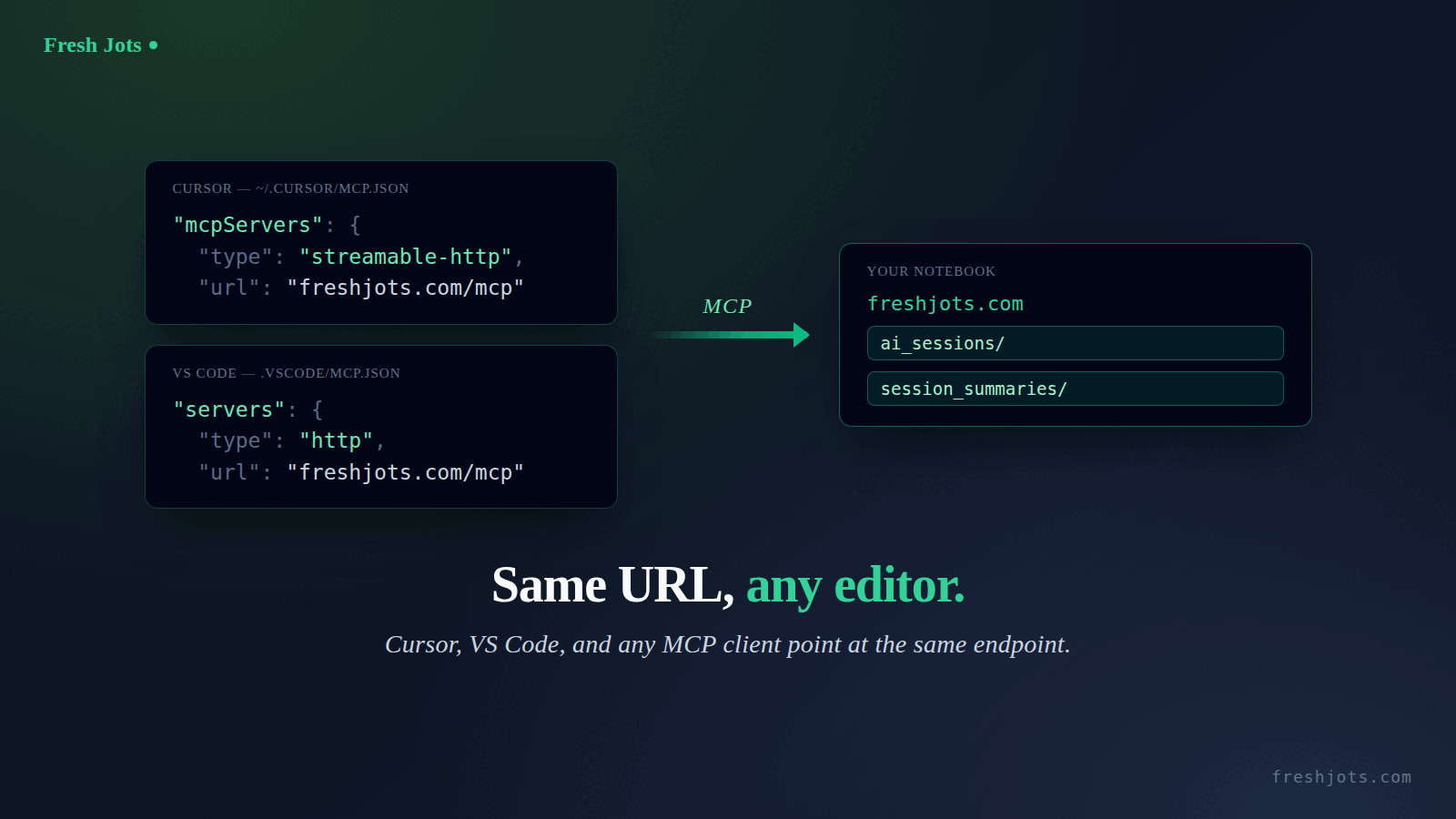
3. In your editor — Cursor, VS Code, and any MCP client
3. In your editor — Cursor, VS Code, and any MCP client
Coding tools don't have a "Connectors" menu; they read a small JSON config file. You pick one of the two shapes above and write a few lines.
**Cursor** — add to `~/.cursor/mcp.json` (global) or `.cursor/mcp.json` (one project). Remote, with OAuth — Cursor opens your browser to authorize on first use:
```json
{
"mcpServers": {
"freshjots": { "type": "streamable-http", "url": "https://freshjots.com/mcp" }
}
}
```
Or local, with a token:
```json
{
"mcpServers": {
"freshjots": {
"command": "npx",
"args": ["-y", "freshjots-mcp"],
"env": { "FRESHJOTS_TOKEN": "mn_…" }
}
}
}
```
**VS Code (GitHub Copilot)** — add to `.vscode/mcp.json` in your workspace (or your user `mcp.json`). Note VS Code uses `servers`, not `mcpServers`, and `"type": "http"` for the remote transport:
```json
{
"servers": {
"freshjots": { "type": "http", "url": "https://freshjots.com/mcp" }
}
}
```
The local form is the same `command` / `args` / `env` block as Cursor's, just under the `servers` key.
**Any other client** — Windsurf, Cline, Zed, a CLI agent, your own script: there's nothing Fresh-Jots-specific to learn. Wire it to one of the two shapes — the remote streamable-HTTP endpoint `https://freshjots.com/mcp` with OAuth, or the `freshjots-mcp` stdio server with a token — and you get the same eleven tools. Need a token for the local path? Get your Fresh Jots API token, then set it once — including the 14-day API trial if you onboarded in code mode.
4. In the console — Claude Code
4. In the console — Claude Code
If you live in the terminal with Claude Code, it wraps both shapes in one command. Remote, with OAuth (recommended) — it runs the same browser authorize on first use:
```
claude mcp add --transport http freshjots https://freshjots.com/mcp
```
Or local, with a token — nothing to host, nothing to authorize:
```
claude mcp add freshjots -e FRESHJOTS_TOKEN=mn_… -- npx -y freshjots-mcp
```
Either way you get the same eleven tools, and either way you need a Fresh Jots Pro or Team plan.
5. What it can do — the eleven tools
5. What it can do — the eleven tools
You won't call these by name; your assistant picks the right one from what you ask. But it helps to know the surface:
- **Notes:** list, read, create, append, update, delete, move.
- **Folders:** list, create, rename, delete.
Plain text only, the same model as the REST API in Everything You Can do Here: rich notes are read-only over the connector, everything is scoped to your own account by the token exactly like a bearer call, and the cap is the Pro per-note size (3 MB) — oversize writes are refused, not truncated.
Two shapes come up most:
- **A queryable home for your AI sessions.** Tell your assistant to append each session's summary to a fixed filename — `ai-sessions.txt`, `claude-log.txt` — and you build a searchable record of what you worked on, written by the assistant itself, that you can read on your phone later.
- **A notebook your assistant maintains with you.** *"Add this to my `ideas` note", "what did I decide about X", "file these under `meeting-notes`"* — your notes stop being a separate app you context-switch into and become something the assistant edits alongside you.
6. Pro tier, and why
6. Pro tier, and why
The connector needs a **Pro or Team** plan — the same gate as the API. Authorize a Free account and you're sent to the pricing page rather than handed a token that wouldn't work. This is the developer and automation surface, and it rides the Pro plan that already includes the API, the dead-man's-switch, and outbound webhooks. The Fresh Jots MCP server is one more thing that plan turns on, at no extra charge.
7. Where this sits
7. Where this sits
- **You'd rather write the call yourself.** Write a Note From Any Project — the `curl` and the per-language guides.
- **You want your AI *agent* to write the integration.** Connect Any AI Coding Agent to Fresh Jots — the slash-command and hook approach, one tier down from a standard protocol.
- **You need a token first (for the local server).** Get your Fresh Jots API token, then set it once.
The progression is the whole story: write the `curl` yourself, or have an agent write it, or — with MCP — write nothing and just talk to your notes. One connect, and your assistant has your notebook.