·
10 min read
The Fresh Jots CLI, command by command
The Fresh Jots CLI, command by command
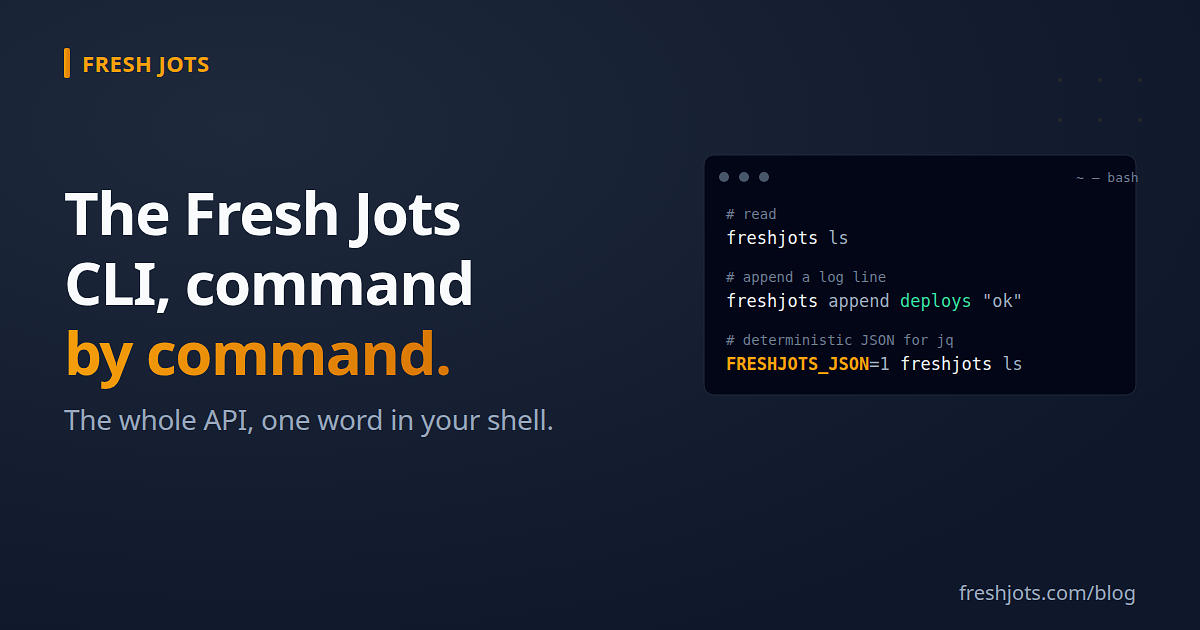
`freshjots` is the entire Fresh Jots API folded into one small command you can type. There is no SDK to learn and no endpoint to memorize: the same calls that power the web app are a single word away in your shell, and the CLI itself is the source of truth — it encodes the auth header, the paths, and the JSON shapes so you don't have to. This post walks every command, with a runnable example for each, so you can use it as a daily driver at the terminal *and* lift the same lines straight into a cron job or a CI step.
For Linux, and for Mac OS: homebrew-freshjots.
For Windows and JS: freshjots-js.
For Linux, and for Mac OS: homebrew-freshjots.
For Windows and JS: freshjots-js.
1. Install once
1. Install once
One line installs it. It's a static script served from the site, so there's nothing to build and nothing to trust beyond what you can read:
```sh
curl -fsSL https://freshjots.com/install.sh | sh
```
It needs `curl`, `jq`, and `bash` 3.2+ (the installer tells you the exact package name for your OS if `jq` is missing). Prefer to read before you run — always a good habit for any `curl | sh`:
```sh
curl -fsSL https://freshjots.com/install.sh > install.sh
less install.sh
sh install.sh
```
No root? Point it at a user-local prefix and nothing touches system directories:
```sh
curl -fsSL https://freshjots.com/install.sh | PREFIX="$HOME/.local" sh
```
Three commands work immediately with no token at all — `freshjots help`, `freshjots version`, and `freshjots api-reference` — so you can confirm the install before you ever paste a credential.
2. One env var is the whole auth story
2. One env var is the whole auth story
Authentication is a single environment variable. Mint a token at freshjots.com/settings/api_tokens, then persist it in your shell profile so every new terminal — and any program that shell launches — inherits it:
```sh
echo 'export FRESHJOTS_TOKEN="mn_yourtokenhere"' >> ~/.bashrc # or ~/.zshrc
```
This has to be set before you run your new AI coding agent session, so that it picks up the token. API access is a Pro or Team feature (an active trial counts too). On a Free or Personal account every call returns `403 forbidden`. If you run a command with no token set, the CLI doesn't fail cryptically — it prints the exact three-step setup, with the rc file and `export` syntax already filled in for *your* shell.
3. Reading: ls, get, cat
3. Reading: ls, get, cat
Three read commands, each shaped for a different need. `freshjots ls` lists every note as a tab-separated `filename` and `title` — pipe it into `grep`, `column`, or `fzf`:
```sh
freshjots ls
freshjots ls | grep -i diary # filter to just your diary notes
```
`freshjots cat <filename>` prints just the note's body, nothing else — the command you want in a pipeline:
```sh
freshjots cat deploys
```
`freshjots get <id>` is the inspect command: it always prints the full note as pretty JSON — id, title, folder, timestamps, settings — regardless of any output flags, because metadata is exactly what you asked for:
```sh
freshjots get 4213
```
4. Finding a note's id
4. Finding a note's id
The commands you reach for day to day address a note by its filename — `cat`, `set`, and `append` all take the name you already chose, so most of the time you never touch ids at all. Only four commands are id-only: `get`, `rm`, `update`, and `mv`. When you do need an id, three places hand it to you. The first is `create`: it prints the id the moment the note exists, so you can capture it right there.
```sh
freshjots create "Q3 planning" "First draft."
# prints: created #82 Q3 planning
```
The second is any read command in `FRESHJOTS_JSON=1` mode, which returns the whole note object instead of the friendly extraction — point `cat` at a filename you know and read `.id` back:
```sh
FRESHJOTS_JSON=1 freshjots cat "Q3 planning" | jq .id
```
The third is the list itself: the plain `freshjots ls` view deliberately hides the id, but the JSON behind it carries one for every note, so this is the line to reach for when you have a name but no number — or when the note was made by `append`, which prints nothing by default:
```sh
FRESHJOTS_JSON=1 freshjots ls | jq -r '.notes[] | "\(.id)\t\(.filename)\t\(.title // "(untitled)")"'
```
Folders are the tidy exception: `freshjots folders` already prints `id<TAB>name` in its default view, precisely because you need that id for `folder rename`, `folder rm`, and the destination of `mv <note-id> <folder-id>`.
5. The one distinction that matters: create vs append
5. The one distinction that matters: create vs append
There are two ways to make a note and they are not interchangeable. `freshjots create "<title>" [text]` makes a normal editable note; the server *derives the filename from the title* — you don't choose it (for an ordinary title the filename is the title itself; only slashes and control characters are stripped) — and the command prints back the resulting `#id` and `filename` so the note is addressable:
```sh
freshjots create "Q3 planning" "First draft of the roadmap."
```
`freshjots append <filename> [text]` is a log stream addressed by an *exact* name you pick. The first call creates the note with precisely that filename; every later call appends a line. It's append-only by design — perfect for cron output, deploy logs, or a running scratchpad — and it prints nothing on success unless you ask for JSON:
```sh
freshjots append deploys "shipped $(git rev-parse --short HEAD) at $(date -u +%FT%TZ)"
```
The rule worth memorizing: *pick the filename → `append`; pick the title → `create`.* Asking `create` for an exact filename is the single most common Fresh Jots mistake — the API simply doesn't accept a filename there.
6. Piping: stdin everywhere it makes sense
6. Piping: stdin everywhere it makes sense
Both writers read standard input when you don't pass the text as an argument, so the CLI drops into pipelines naturally. Capture a command's output as a note:
```sh
df -h | freshjots append disk-space
```
Create a note from a file:
```sh
freshjots create "Meeting notes" < notes.txt
```
When editing, a lone `-` means "read the body from stdin", which is how you set a multi-line body without quoting gymnastics:
```sh
git log --oneline -20 | freshjots set changelog --body -
```
7. Editing in place: update and set
7. Editing in place: update and set
Two edit commands, differing only in how they address the note: `freshjots update <id> [flags]` by numeric id, `freshjots set <filename> [flags]` by stream name. Both change *only* the keys you pass, so a metadata tweak never clobbers the body. The flags fall into two groups. Content flags rewrite the body as a unit — and because that's a whole-body rewrite, `--title` needs `--body` (or `-`) alongside it; a title-only change is refused with guidance rather than a doomed call:
```sh
freshjots update 4213 --title "Q3 planning (final)" --body "Signed off."
```
Metadata-only flags need no body and work even on locked, append-only notes: `--folder N` or `--root`, `--deadline N` (append-deadline hours), `--alert-email`, `--webhook-url`, and `--webhook-secret`:
```sh
freshjots set deploys --webhook-url https://hooks.example.com/fj --deadline 24
```
(`append_only` and `format` are deliberately not updatable through the API, so the CLI doesn't pretend they are.)
8. Deleting and moving
8. Deleting and moving
`freshjots rm <id>` deletes a note and prints nothing — a clean `204`. A locked, append-only note refuses deletion with `403 note_locked`, by design; that's the protection working, not a bug:
```sh
freshjots rm 4213
```
`freshjots mv <id> <folder-id>` files a note into a folder, and `--root` pulls it back out to the top level:
```sh
freshjots mv 4213 17
freshjots mv 4213 --root
```
9. Folders
9. Folders
Folders are flat — no nesting — and the verbs mirror the note commands. `freshjots folders` lists them as `id` and `name`; `freshjots folder <id>` shows one as JSON:
```sh
freshjots folders
```
Create, rename, and remove are explicit subcommands. Deleting a folder doesn't delete its notes — they survive at the account root, where you can leave them or `freshjots move` them into another folder:
```sh
freshjots folder create "Invoices"
freshjots folder rename 17 "Invoices 2026"
freshjots folder rm 17
```
10. Bulk: up to 50 notes, all or nothing
10. Bulk: up to 50 notes, all or nothing
`freshjots bulk` creates many notes in one atomic request — either all of them land or none do. Feed it a JSON file, or pipe JSON in with `-`. It accepts a bare array or an already-wrapped `{"notes":[...]}`, and the cap is 50 per batch (the CLI checks locally and tells you to split before it even calls the API):
```sh
echo '[{"title":"Alpha","plain_body":"one"},{"title":"Beta","plain_body":"two"}]' | freshjots bulk -
```
```sh
freshjots bulk seed-notes.json
```
11. Scripting it: JSON, exit codes, and a cron one-liner
11. Scripting it: JSON, exit codes, and a cron one-liner
The CLI is built to be scripted. Every command exits `0` on success, `1` on an API error, and `2` on bad arguments — so `set -e` and `&&` chains behave. Errors print as `freshjots: <status> <message>` on stderr, and the stable machine-readable code is always in the JSON at `.error.code`. For deterministic output that won't shift under you, set `FRESHJOTS_JSON=1` and every command emits the raw API JSON instead of the friendly extraction — pipe it straight into `jq`:
```sh
FRESHJOTS_JSON=1 freshjots ls | jq -r '.notes[] | select(.title // "" | contains("TODO")) | .filename'
```
That makes a cron job a one-liner — append a heartbeat every night, and the exit code tells your monitoring whether it worked:
```sh
0 2 * * * /usr/local/bin/freshjots append nightly-backup "ok $(date -u +\%FT\%TZ)" || curl -fsS https://example.com/alert
```
Point `FRESHJOTS_API` at a different base URL to run the exact same commands against a staging server in CI without changing a line of the script:
```sh
FRESHJOTS_API=https://staging.freshjots.com/api/v1 freshjots ls
```
12. The CLI documents itself
12. The CLI documents itself
You never have to leave the terminal to remember the contract. `freshjots help` is the full command and flag list; `freshjots version` prints the build; and `freshjots api-reference` prints the authoritative API reference as markdown — the very same document the AI-awareness installer drops on disk, generated from the CLI so it can't drift from reality:
```sh
freshjots api-reference | less
```
13. Letting your AI drive it
13. Letting your AI drive it
Because the CLI *is* the source of truth, it's also how you let an AI agent use Fresh Jots without hallucinating an endpoint. Re-run the installer with AI-awareness on — `curl -fsSL https://freshjots.com/install.sh | FRESHJOTS_AI=1 sh` — and it points your agent at this same CLI and reference, with a hard "verify, don't guess" rule. That setup has its own walkthrough: see *"You've got a Fresh Jots token — now make your AI actually use it."*
14. The whole surface on one page
14. The whole surface on one page
Read with `ls`, `cat <filename>`, `get <id>`. Write with `create "<title>"` (title-derived filename) or `append <filename>` (exact name, append-only). Edit with `update <id>` / `set <filename>` and the content vs metadata flags. Organize with `mv`, `--root`, and the `folder` verbs. Batch with `bulk` (≤ 50, atomic). Script it with `FRESHJOTS_JSON=1`, the `0/1/2` exit codes, and `FRESHJOTS_API` for staging. Everything you can do in the Fresh Jots web app, you can now do — and automate — from a single word in your shell.
15. Resources
15. Resources